
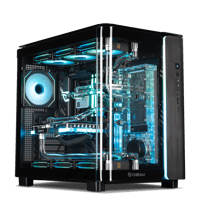
.png)
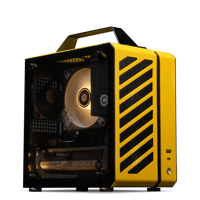
.png)
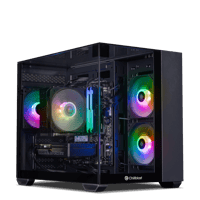
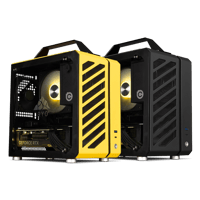





.png)

.png)


Video Editing Workstations Buying Guide
Last reviewed: October 2026 - Chillblast team
The best PC spec for video editing pairs a current graphics card (GPU) with enough memory (RAM) and fast solid-state storage (NVMe) for your footage. For 4K in Premiere Pro or DaVinci Resolve, start at 32GB of RAM, an 8GB-plus NVIDIA RTX card and 2TB of NVMe. 8K and RAW footage want 64GB-plus and 16GB-plus of graphics-card memory (VRAM).
Chillblast's Spark video editing PCs start with the Spark Video Core, and the wider Spark creator range scales to multi-GPU workstations.
| 4K editing, entry workstation | View details | View product | |||
| Compact 4K | View details | View product | |||
| 4K multicam, grading and after effects | View details | View product | |||
| 6-8K multi-GPU DaVinci Resolve Studio | View details | View product | |||
| 8K RAQ and maximum VRAM | View details | View product |
Does video editing use the CPU or the GPU more?
Both, for different jobs. The processor (CPU) runs the editing software, decodes footage the graphics card cannot and drives many effects. The graphics card (GPU) accelerates playback, colour, effects and exports. DaVinci Resolve leans hardest on the GPU; Premiere Pro splits the load more evenly, so a balanced build serves it best.
| Job | Adobe Premiere Pro | DaVanci Resolve | |
|---|---|---|---|
| Playing back H.264/H.265 footage | Hardware decoding on the GPU or Intel Quick Sync; CPU otherwise | Hardware decoding only in Resolve Studio (the paid version) | Value Four |
| Colour and effects | Lumetri colour and many effects on the GPU; some plug-ins CPU-bound | Colour page, noise reduction and Fusion run on the GPU | |
| Exports | Hardware encoding for H.264/H.265; CPU for other formats | Hardware H.265 encoding in both versions; Studio accelerates more formats | |
| Second GPU | Little benefit | Studio uses two or more GPUs; the free version uses one | |
| Spend first on | Balanced CPU, GPU and 32GB-plus RAM | GPU and VRAM |
After Effects leans on RAM and CPU clock speed, so motion-graphics work justifies 64GB before a bigger graphics card. Final Cut Pro runs only on Apple Macs, so it sits outside a Windows workstation decision.
Which codecs make editing hard, and what is hardware decoding?
A codec is the compression format your camera records. Highly compressed "long-GOP" formats such as H.264 and H.265 make small files but are hard to play back, because most frames are rebuilt from their neighbours. Hardware decoding hands that work to dedicated video engines on the GPU or CPU, which keeps a 4K timeline responsive.
| Codec family | Typical source | Editing load | What helps |
|---|---|---|---|
| H.264 / H.265 (HEVC), 8-bit 4:2:0 | Phones, drones, most cameras | Heavy on the CPU; light with hardware decoding | NVIDIA NVDEC or Intel Quick Sync |
| H.264 / H.265, 10-bit 4:2:2 | Mirrorless cameras in high-quality modes | Very heavy; older GPUs cannot decode it in hardware | An RTX 50-series GPU or Intel Quick Sync; otherwise proxies |
| ProRes / DNxHR | External recorders, cinema cameras, proxy files | Light per frame, heavy on storage | Fast NVMe; more CPU cores |
| RAW (Blackmagic RAW, REDCODE, ARRIRAW) | Cinema cameras | GPU-heavy image processing | Strong GPU, more VRAM, fast NVMe |
10-bit means over a billion possible colours rather than 8-bit's 16.7 million; 4:2:2 keeps more colour detail than the 4:2:0 used by phones. NVENC and NVDEC are NVIDIA's encode and decode engines, and RTX 50-series cards add 4:2:2 decoding. Quick Sync is Intel's equivalent on chips with integrated graphics (no "F" suffix), such as the Spark Video Core's Core i5-14500. If your hardware cannot decode a format, edit from proxies (lightweight copies) and relink the originals for export.
How much RAM do I need for 4K and 8K editing?
32GB of RAM is the working minimum for 4K editing in Premiere Pro or DaVinci Resolve. Step up to 64GB for 4K multicam, heavy effects, After Effects or 6K–8K timelines, and plan for 128GB for 8K RAW and very large compositions. 16GB is enough only for 1080p work or editing from proxies.
| 1080p, short-form, proxy editing |
16GB
|
View details | View product | ||
| 4K, one or two camera angles |
32GB
|
View details | View product | ||
| 4K multicam, After Effects, 6K |
64GB
|
View details | View product | ||
| 8K RAW, large Fusion or After Effects projects |
64GB minimum, 128GB preferred
|
View details | View product |
How much graphics-card memory (VRAM) does video editing need?
VRAM holds frames, effects and noise-reduction data while the GPU works. 8GB covers 1080p and light 4K; 12–16GB suits 4K grading and GPU effects; 24–32GB handles 8K timelines and heavy Fusion work. 96GB professional cards are for 8K RAW, virtual production and the largest projects. Effects stack on resolution, so buy one tier up.
The Chillblast range steps through RTX 5050 8GB (Spark Video Core), RTX 5060 8GB (Cryo Core), RTX 5070 12GB (Cryo Pro), RTX 5070 Ti 16GB (Spark 3D Pro), RTX 5080 16GB (Cryo Ultra), RTX 5090 32GB (Cryo Ultimate, Erebus) and RTX PRO 6000 Blackwell 96GB (Shadowforge). Two cards do not pool memory: each RTX 5070 in the Spark 3D Ultra uses its own 12GB, so a second card adds speed, not capacity.
How should I set up storage for video editing?
Split storage by job. Put the operating system and apps on one fast NVMe solid-state drive, current footage on a second NVMe, cache and render files on fast storage, and finished projects on a large hard drive or network storage. Editing straight from a hard disk or USB drive is the most common cause of a stuttering timeline.
| Tier | What lives there | Drive type | Size guide |
|---|---|---|---|
| System | Windows, editing software, plug-ins | NVMe SSD | 1-2TB |
| Media | Footage for current projects | Second NVMe SSD | 2–4TB or more |
| Cache and scratch | Render cache, optimised media, proxies | NVMe SSD (can share the media drive on smaller builds) | 1TB or more |
| 1TB or more | Finished projects, backup of camera originals | Hard drive (HDD) or network storage (NAS) | 4TB or more |
Spark workstations pair 2TB of NVMe with a 2TB, 4TB or 8TB hard drive (Video Core, 3D Pro, 3D Ultra). Treat that drive as the archive tier, and add a second NVMe at order for 4K RAW or multicam.
Do I need a calibrated monitor for video editing?
Yes, if your colour decisions leave your desk. A calibrated monitor shows colour to a known standard, so a grade looks the same on a client's screen. Use a hardware colorimeter (a sensor that measures the screen) to calibrate to Rec.709 for broadcast and web video, or DCI-P3 for cinema and HDR work, and repeat it regularly.
Look for an IPS or OLED panel with wide colour-gamut coverage and a true 10-bit signal path, which avoids banding in skies and gradients. For client grading, professional suites feed the reference monitor from a dedicated video output card rather than the Windows desktop, so the operating system cannot alter the picture. High refresh rates do nothing for grading accuracy.
What spec do I need for video editing at each budget?
Match the tier to your footage, not your ambition. Entry 4K editing needs a modern 14-core-class CPU, 32GB of RAM and an 8GB GPU. Professional 4K multicam and grading want 64GB and a 16GB GPU. 8K and RAW workflows want two GPUs or one high-VRAM card.
| Entry 4K | View details | View product | |||
| Compact 4K | View details | View product | |||
| Professional 4K | View details | View product | |||
| 6K-8K multi-GPU | View details | View product | |||
| Compact 8K | View details | View product | |||
| Flagship | View details | View product |
When is a flagship editing workstation worth it?
Step up from the Spark 3D Pro when footage is 6K–8K or RAW, when Resolve noise reduction slows playback, or when export time costs paid work. The Spark 3D Ultra feeds two RTX 5070 cards from a 1600W 80 Plus Platinum power supply (PSU) for Resolve Studio's multi-GPU processing; the Shadowforge's 96GB card is for projects that exhaust consumer VRAM. All six systems use air or all-in-one (AIO) liquid cooling — a be quiet! Dark Rock 5 on the Video Core, Noctua NH-U12A on the 3D Pro and Ultra, a 360mm AIO on the Shadowforge — to keep noise down through long exports. Compare them on the video production PCs and tower workstations pages.
What is the best mini PC for video editing?
The best mini PC for video editing has a full desktop GPU, 32GB or more of RAM and 2TB of NVMe storage. Chillblast's Cryo Pro does that in about 13 litres. The 10-litre Cryo Core is smaller, but its 16GB of RAM suits 1080p and proxy work. For 8K, the RTX 5090 Erebus and Cryo Ultimate fit in 16–18 litres.
Each runs full desktop components, not laptop parts; the Cryo Ultra and Ultimate use a Cryo Storm DT240 240mm AIO. The trade-offs: one NVMe drive each, so archives live on external or network storage, and a tower's 14–24 cores still finish CPU-heavy exports first. Compare the range on the small form factor PCs and Cryo portable PCs pages.
What should I check before buying a video editing workstation?
Check five things: the named components on the product page, how the builder vets parts and tests each system, the warranty term, the real delivery time, and whether RAM and storage can be configured at order. A workstation that fails on deadline costs more than any spec difference between two builders.
1. Named components. Insist on the CPU, GPU model and VRAM, RAM and storage. Chillblast names all four on every product page; the graphics card's board partner is chosen at build time to keep supply consistent, only from partners whose quality and testing standards match its own.
2. Supplier vetting and testing. These are two separate filters. Chillblast works only with component partners whose values on quality, and whose testing processes, match its own, then stress-tests every finished system before it ships.
3. Warranty. Compare the labour years, not just the headline term (see the table below).
4. Delivery. Every non-water-cooled Chillblast system is built and delivered within 7 days of order; fully custom water-cooled builds are quoted individually.
5. Configuration. Spark workstations can be configured at order, so extra RAM or a second NVMe is fitted and tested with the system.
What mistakes should I avoid when buying a video editing PC?
Most disappointing editing PCs fail on balance, not budget: a strong GPU starved of RAM, footage on a slow drive, or a camera codec the hardware cannot decode. Fix those three before spending more on the processor or graphics card, and match the software you actually use.
1. Editing 10-bit 4:2:2 files on hardware that cannot decode them. Check decode support, or plan on proxies.
2. Buying 16GB of RAM for 4K. It works for 1080p and proxies, not for 4K timelines with effects.
3. Editing from the archive hard drive. Footage for current projects belongs on NVMe.
4. Paying for a second GPU to run Premiere Pro. Multi-GPU speed-ups belong to DaVinci Resolve Studio.
5. Grading on an uncalibrated screen. A precise workstation cannot fix colour you cannot see.
6. Buying the free version of Resolve for multi-GPU hardware. Multi-GPU and hardware H.264/H.265 decoding need Resolve Studio.